
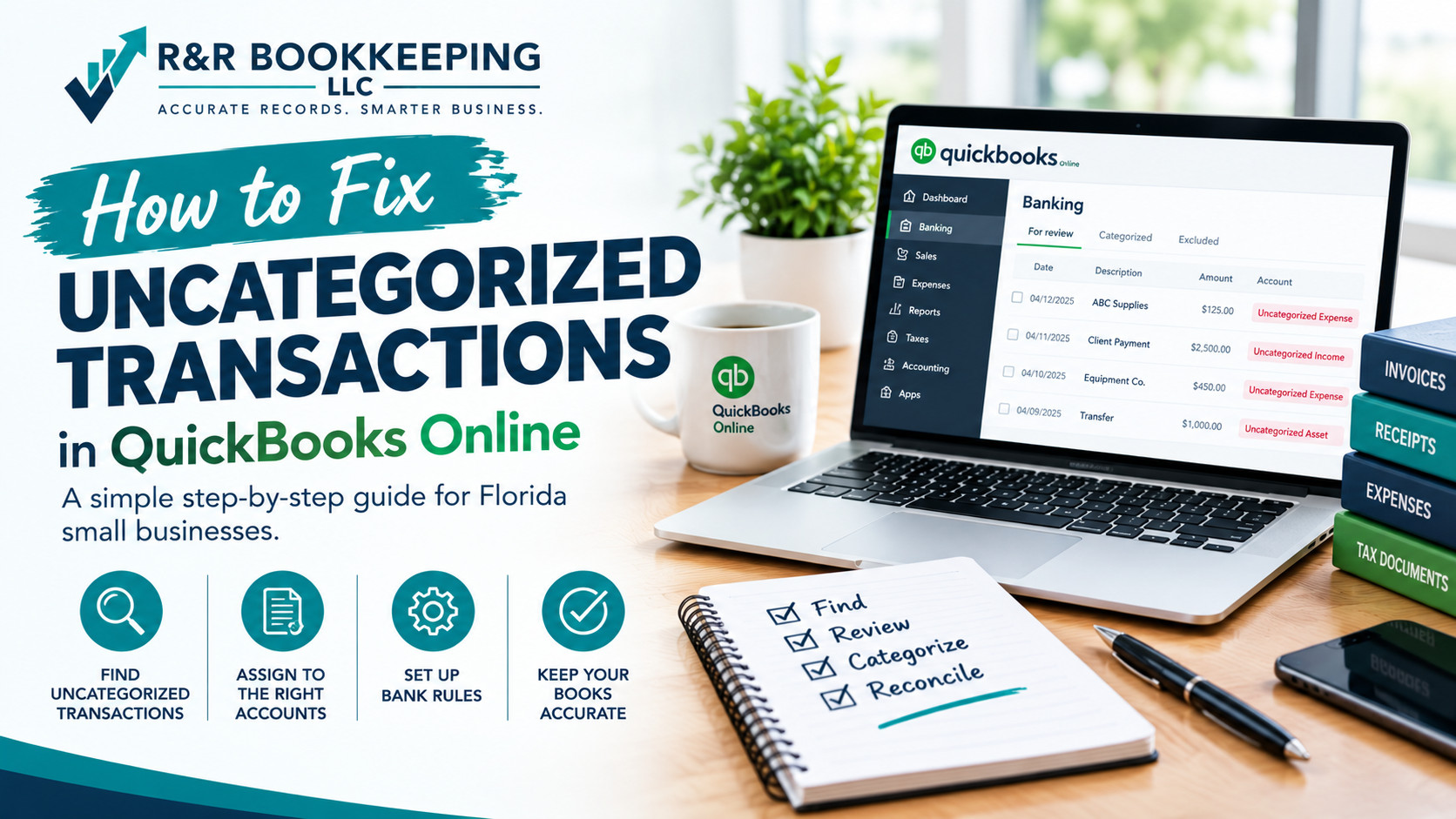
To fix uncategorized transactions in QuickBooks Online, run a report filtered to your “Uncategorized Income,” “Uncategorized Expense,” and “Uncategorized Asset” accounts, open each transaction, assign it to the correct account, match deposits to existing invoices instead of recording them as new income, and set up bank rules so repeat transactions categorize automatically. Don’t leave transactions in a catch-all account or move them to “Miscellaneous,” because that hides the problem instead of solving it. Most owners can clear a small backlog in an afternoon, while a large one is faster to handle in monthly batches.
Uncategorized transactions are one of the clearest signs that books have slipped behind. They distort your profit and loss statement, hide deductions, and make tax season harder than it needs to be. This guide explains what they are, why they matter, and exactly how to clear them, with notes for Florida business owners heading into year-end.
What Are Uncategorized Transactions in QuickBooks?
An uncategorized transaction is money moving in or out of your business that hasn’t been assigned to a proper account, such as rent, supplies, or sales revenue. When QuickBooks can’t tell where a transaction belongs, it often parks it in a placeholder such as Uncategorized Income, Uncategorized Expense, or Uncategorized Asset.
Those placeholders are meant to be temporary. If they stay on your reports, QuickBooks is telling you the transaction still needs a real home.
Why Do Uncategorized Transactions Matter?
They affect more than your tidiness:
- Your profit and loss statement is inaccurate. You can’t see what you really spent or earned in each category. Our guide to how to read a profit and loss statement shows what accurate categories reveal.
- Deductions get missed. An expense sitting in a catch-all account is easy to overlook when your tax preparer builds your return.
- Tax filings can be wrong. Income and expense totals feed directly into your return, and 1099 totals depend on clear vendor payments.
- Decisions suffer. You can’t price, hire, or cut costs without reliable numbers.
- Cleanup gets more expensive the longer you wait.
Why Do Transactions End Up Uncategorized?
Common causes include:
- Bank feeds import transactions faster than anyone reviews them
- Nobody set up bank rules for recurring vendors
- A bookkeeper left, or books were only touched at tax time
- Personal and business spending were mixed in one account
- You weren’t sure how to categorize something, so you skipped it
- Payments through processors like Square or Stripe arrive as net deposits that don’t match sales
How Do You Find Uncategorized Transactions?
- Run a Profit and Loss report for the period and look for Uncategorized Income, Uncategorized Expense, and Uncategorized Asset lines
- Open a Transaction Detail by Account report and filter to those accounts, so you can see every transaction in one list
- Check the Banking area for transactions marked “for review” that were never accepted
Menu names and layouts change over time, so if you can’t find a report, Intuit’s QuickBooks support site has current instructions.
How Do You Fix Uncategorized Transactions Step by Step?
Step 1: Work in Date Order
Start with the oldest period and move forward. Clearing the oldest months first keeps your reports consistent and makes reconciliation easier.
Step 2: Match Before You Categorize
For deposits, check whether the money belongs to an existing invoice or sales receipt. If it does, match it to that record instead of categorizing it as new income. Otherwise you’ll record the same income twice, once when you invoiced and again when the deposit arrived.
Step 3: Categorize Using Consistent Accounts
Assign each remaining transaction to the account where it belongs. Our guide to how to categorize business expenses lists the standard categories most small businesses use. A few special cases come up often:
| Transaction | Where It Belongs |
|---|---|
| Transfer between your own accounts | Record as a transfer, not income or expense |
| Credit card payment | Record as a transfer to the card account |
| Loan payment | Split between principal (liability) and interest (expense) |
| Owner paying personal expenses from the business | Owner’s draw, not a business expense |
| Sales tax payment to the state | Sales tax payable (liability), not an expense |
| Estimated tax payment | Owner’s draw or tax payment, not a deductible expense |
Step 4: Create Bank Rules
When a vendor repeats, such as your internet provider or software subscription, create a rule so future transactions categorize themselves. Review the results regularly, because rules can occasionally apply to the wrong transactions.
Step 5: Handle Unknowns Carefully
If you can’t identify a transaction, check your email, receipts, and bank description, or ask the person who made the purchase. Some owners temporarily use an “Ask My Accountant” account for items they can’t identify, but those items need to be resolved, not left there permanently.
Step 6: Re-Run Your Reports
Once you’re done, run the profit and loss and balance sheet again. The Uncategorized lines should be zero, and your categories should look reasonable.
Step 7: Reconcile
Finish by reconciling each account so you know the corrected books match the bank. If an account doesn’t balance afterward, our guide on what to do when a QuickBooks reconciliation won’t balance explains how to track the problem down.
What Mistakes Should You Avoid?
- Dumping everything into Miscellaneous or Other Expenses. That’s the same problem with a new label.
- Categorizing deposits as income without matching invoices, which doubles revenue.
- Treating owner draws as expenses. They don’t reduce business profit.
- Recording loan principal as an expense, which understates profit.
- Deleting transactions to make them disappear. Delete only true duplicates.
- Editing transactions in already reconciled periods without understanding the effect on your balances.
How Do You Keep Transactions From Piling Up Again?
- Review bank feed transactions weekly instead of monthly
- Keep a short list of recurring vendors and set rules for each
- Use separate accounts for business and personal spending
- Reconcile every month
- Review the profit and loss statement monthly, looking specifically for uncategorized lines
If you’re far behind, our guide on how to catch up on bookkeeping covers the full process for months or years of backlog.
Why Is Q4 the Right Time to Clean This Up?
Before December 31, you can still act on what you find. Clear uncategorized items now and you’ll see real expense totals before the year closes, which helps with deductions and planning. Our small business tax deductions guide shows what to review, and our year-end bookkeeping checklist covers the rest of your close process. Clean contractor payment records also matter for the new 1099 threshold.
What Should Florida Businesses Watch For?
- Sales tax. If you collect Florida sales tax, make sure the tax collected and the payments to the state land in liability accounts, not income or expenses. Our Florida sales tax filing guide explains the deadlines.
- Card processor deposits. Square, Stripe, and similar processors deposit net amounts after fees, so deposits won’t match sales exactly.
- Seasonal volume. Busy tourism and holiday periods create more transactions to review.
- Hurricane season records. Keep digital copies of statements and receipts so you can rebuild records if paper is lost.
For what the IRS expects regarding business expenses, see IRS Publication 535.
When Should You Hire Help to Fix Uncategorized Transactions?
Consider help if you have hundreds of uncategorized items, you’re months behind, tax season is close, or you’re unsure how to treat transactions like loans, transfers, or owner payments. Our QuickBooks clean up and catch up services correct the backlog, and our monthly bookkeeping services keep it from building again. You can also browse our full range of services.
Frequently Asked Questions
How do I fix uncategorized transactions in QuickBooks Online? Run a report filtered to your Uncategorized accounts, match deposits to existing invoices, assign each remaining transaction to the correct account, create bank rules for repeat vendors, and reconcile the account afterward.
What does uncategorized expense mean in QuickBooks? It’s a placeholder account QuickBooks uses when a transaction hasn’t been assigned to a specific expense category. It should be cleared so your reports show real categories.
Why do I have so many uncategorized transactions? Usually because bank feeds import transactions faster than they’re reviewed, no bank rules were set up, or the books haven’t been maintained regularly.
Should I categorize deposits as income? Only if they aren’t tied to an invoice or sales receipt. If they are, match them to that record to avoid counting the income twice.
Where does an owner draw go in QuickBooks? Owner draws are recorded as equity, not as a business expense, so they don’t reduce your profit.
Can I delete uncategorized transactions? Delete only true duplicates. Deleting a real transaction removes it from your books and can cause reconciliation errors.
What are bank rules in QuickBooks? They are saved instructions that automatically categorize recurring bank transactions based on details like the vendor name or amount.
How do uncategorized transactions affect my taxes? They can hide deductions and make income and expense totals unreliable, which affects your tax return and contractor payment reporting.
How long does it take to clear uncategorized transactions? A small backlog can take an afternoon. Hundreds of transactions or multiple months can take days or longer, depending on record quality.
Want Your Categories Cleaned Up Before Year-End?
A short review of your books can show exactly how many transactions need attention. Book a free consultation with our Sanford, FL team, or visit our homepage to learn more.